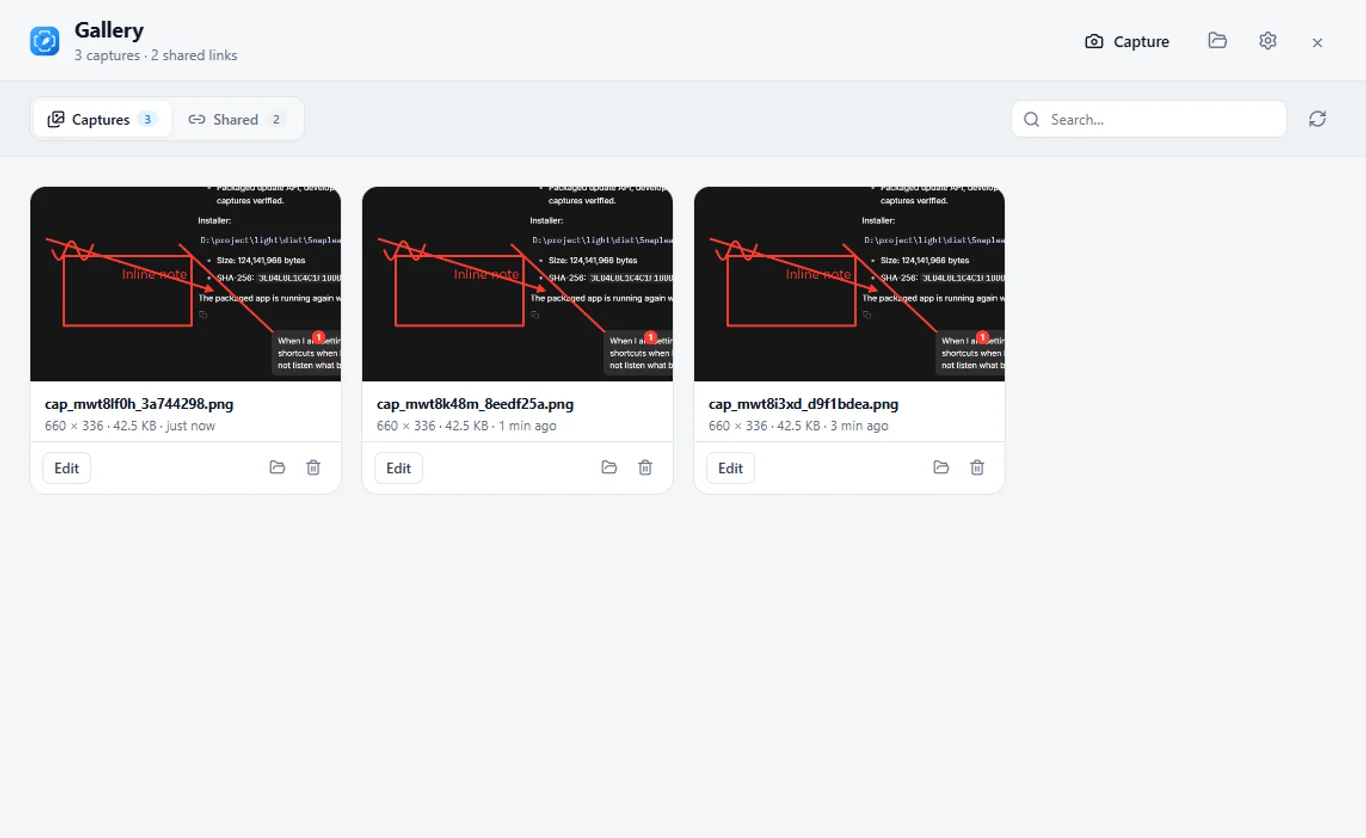
New Snapleaf 0.1.0 ships dual inline & full editors, ellipse & lasso capture, numbered steps, per-object eraser, and local QR sharing. See what’s in v0.1.0

The complete feature tour

Fast as a hotkey.
Deep as a studio.

Snapleaf combines an instant on-screen region selector with a full-featured annotation editor, custom non-rectangular transparency, a searchable local gallery, and a self-hosted QR sharing server.

v0.1.0 Windows 10 and 11 (64-bit) MIT licensed 100% local-first

Capture & selection shapes

Four ways to grab pixels. Three ways to shape them.

Start from the system tray, global hotkey, or the Home dashboard. Snapleaf freezes each monitor at its native physical resolution, remembers your last region per display, and lets you switch shapes even after drawing.

Rectangle selection (R)

Drag a crisp region with live physical dimensions, corner resize handles, and a pixel color magnifier.

Circle & ellipse (O)

Capture circular UI badges, avatars, or dials. Pixels outside the ellipse remain truly transparent in PNG exports.

Freehand lasso (L)

Trace around irregular shapes or charts. The exported PNG clips cleanly to your polygon with transparent corners.

Full display & import

Grab the entire monitor under your cursor in one keystroke, or open any existing PNG/JPEG from disk to annotate.
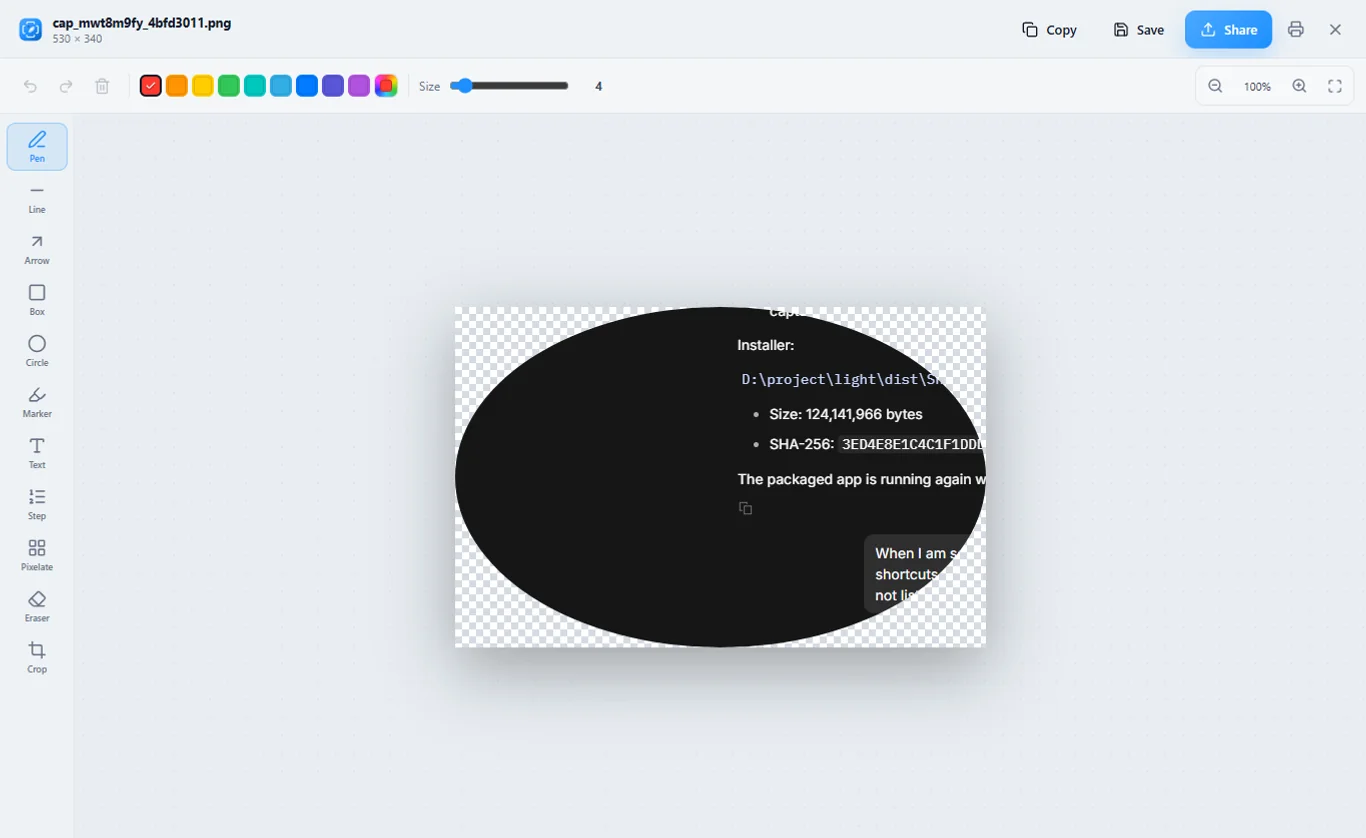
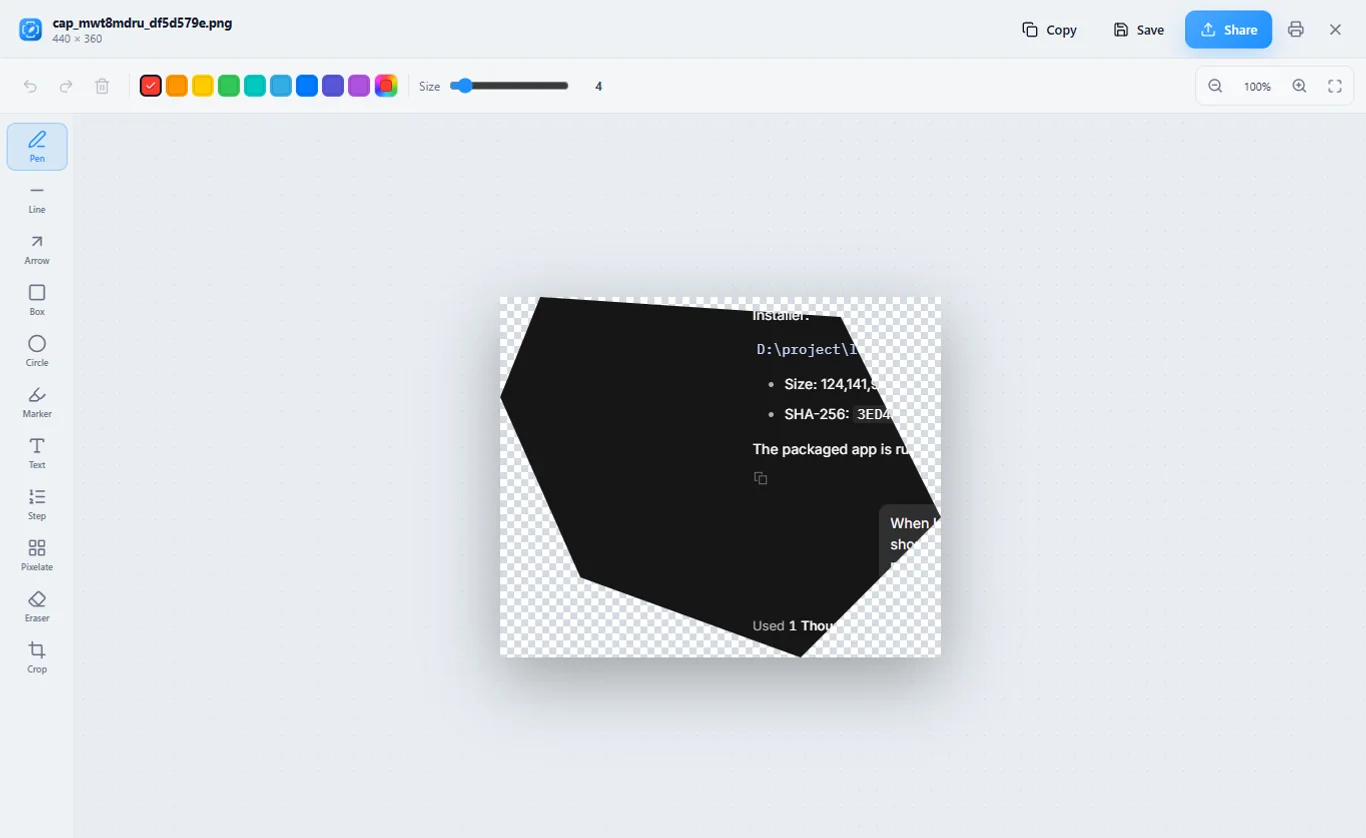
Snapleaf full editor showing an ellipse capture with transparent corners over a checkerboard background. Snapleaf full editor showing a freehand lasso polygon capture with transparent corners over a checkerboard background.
Ellipse and freehand lasso selections preserve true alpha transparency outside the shape.

Change the selection shape even after you drag.

A labeled Select bar stays attached above your selection (`Rectangle`, `Circle`, `Freehand`, plus the exact pixel dimensions). Switching between Rectangle and Circle reshapes the current bounding box in place; clicking Freehand lets you trace a replacement lasso without losing your place.
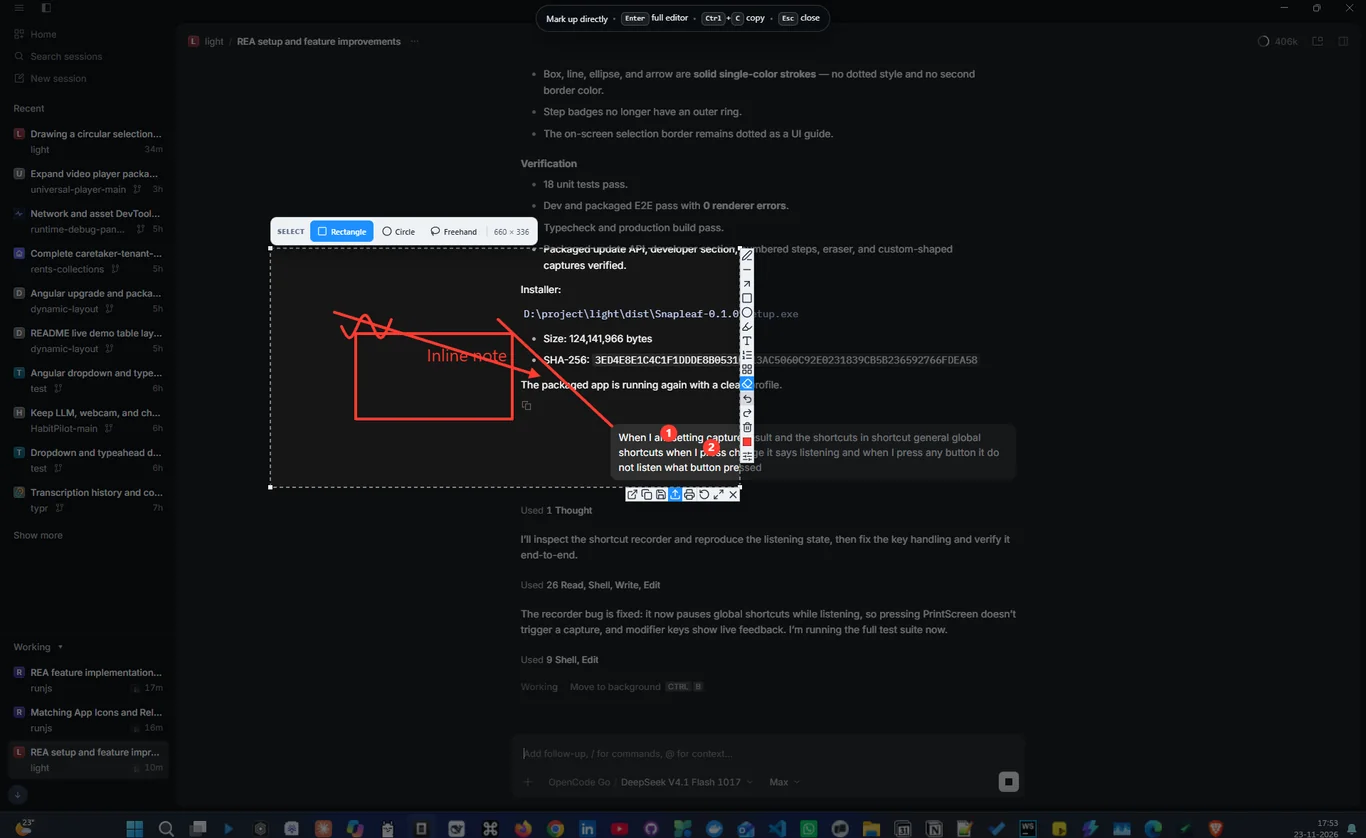
  • True transparent corners (`alpha = 0`) on non-rectangular PNGs
  • Live pixel magnifier with physical coordinates & hex color
  • Adjustable outside-selection dim opacity (15% to 90%)
  • Optional synthetic mouse cursor drawn into region captures
Snapleaf inline capture overlay with the 20px vertical tool rail and bottom action bar attached flush to the selection.
The 20px icon-only rail and bottom action bar attach flush to the selection and flip automatically at screen edges.

Inline overlay editor

Mark it up without opening a window.

As soon as you finish dragging a region, Snapleaf attaches a 20px-thin, icon-only, square vertical tool rail to the right edge and a compact action bar to the bottom edge. You can draw, type, add step badges, pixelate secrets, and copy or share in one fluid motion.
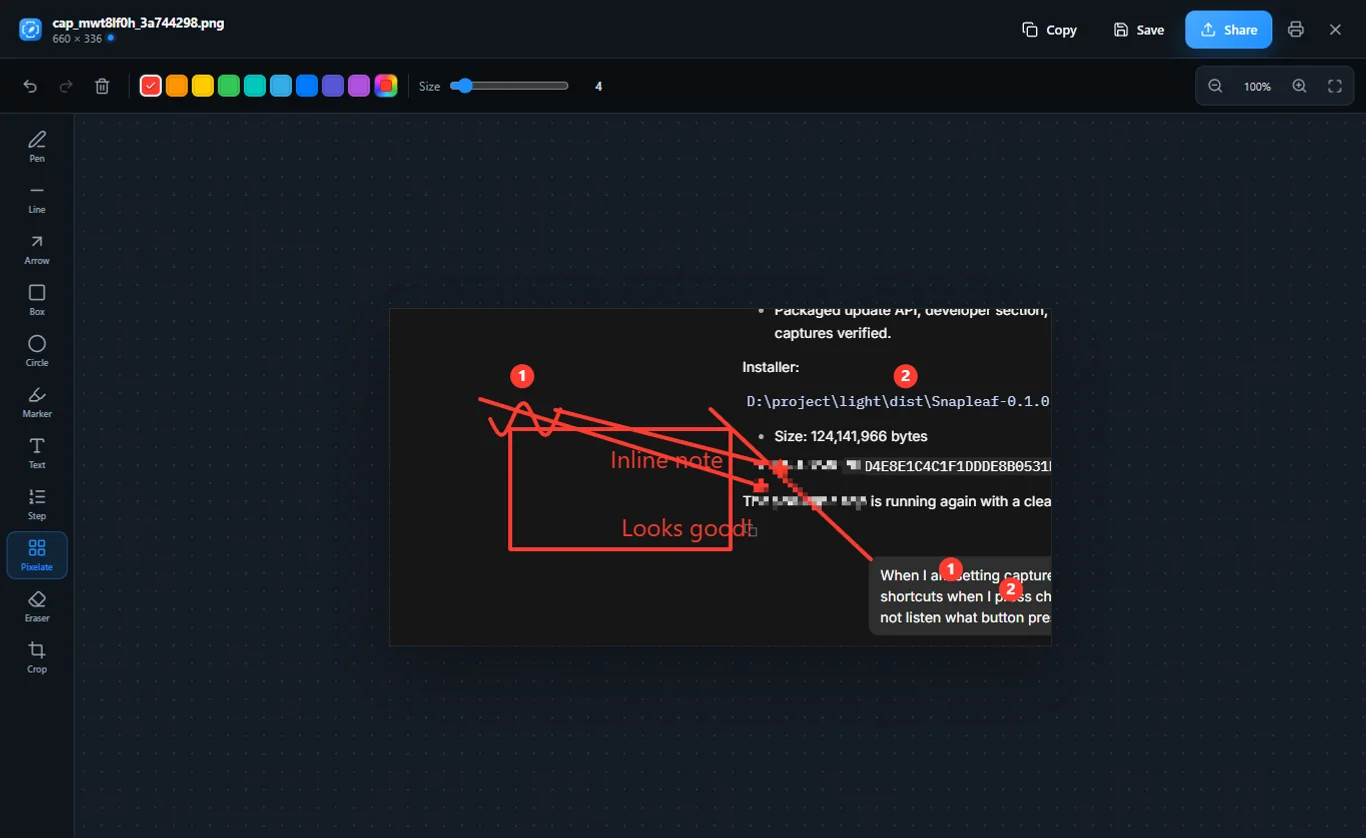
  • 10 inline tools: Pen, Line, Arrow, Box, Circle, Marker, Text, Step, Pixelate, Eraser
  • Inline color swatches + custom picker & stroke/text size sliders
  • Automatic left/right/top edge flipping near monitor borders
  • Solid single-color strokes with no distracting double outline
  • Corner resize handles to fine-tune the capture box
  • One-click Edit, Copy, Save, Share, Print, Redraw, Full screen, Close
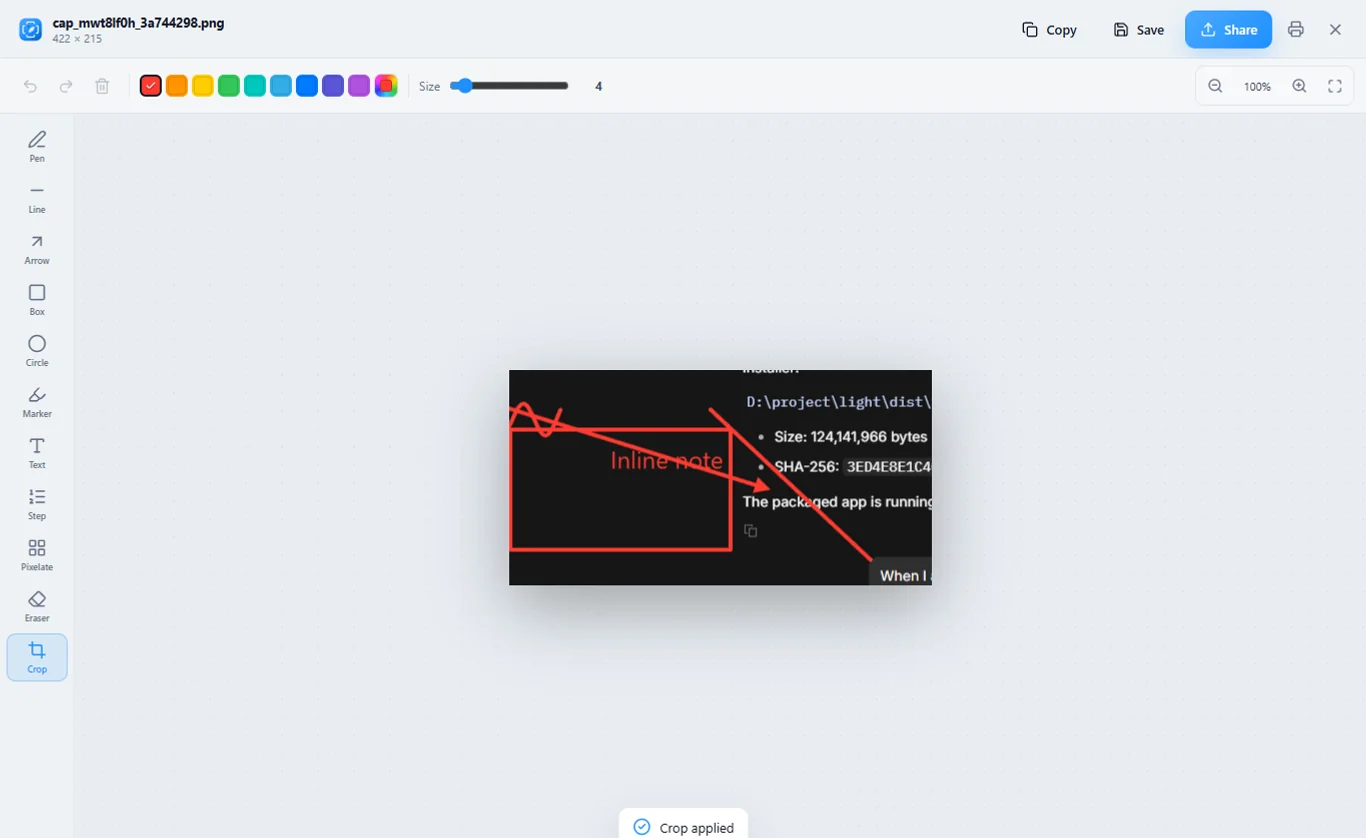
Snapleaf full editor in dark mode with labeled tools, color bar, stroke slider, zoom controls, and 5 annotations. Snapleaf full editor after applying a rectangular crop to trim the screenshot.
Press Enter in the overlay to hand your marked-up crop to the full studio editor.

Full studio editor

When you want room to breathe, press Enter.

The full editor opens your capture (carrying over any inline markup at native resolution) in a dedicated window with a labeled tool rail, top color bar, stroke & text size sliders, live pointer coordinates, rectangular crop with dimensions preview, and smooth zoom from 5% to 400%.

  • Labeled or compact icon-only tool rail
  • Interactive Crop (C) with live pixel size & Apply confirmation
  • Zoom in/out & Fit-to-window (`0` key) without affecting export DPI
  • 5 font stacks: System, Segoe UI, Arial, Georgia, Consolas
  • Bracket shortcuts (`[` and `]`) to adjust stroke width on the fly
  • 40-step Undo (`Ctrl+Z`), Redo (`Ctrl+Shift+Z`), and Clear All

Precision markup

Steps, per-object erasing, and real redaction.

Most lightweight screenshot tools treat your canvas like a flat bitmap where one mistake forces you to undo everything in reverse order. Snapleaf keeps a typed annotation model so every item can be targeted individually.

Shortcut: S

Auto-numbered step callouts

Click anywhere in the inline overlay or full editor to place numbered badges (1, 2, 3…). Erase step 1 and Snapleaf knows which numbers remain; undo and step 1 returns to its exact coordinates.

Shortcut: E

Per-object hit-test eraser

Click or scrub across any stroke, arrow, box, circle, text note, numbered step, or pixelate patch to remove only that object. Pressing Ctrl+Z restores that single removal instead of wiping your whole session.

Shortcut: B

Destructive pixelation on export

Drag a rectangle with the Pixelate tool to downsample sensitive regions into a crisp mosaic block patch. When you copy, save, or share, the flattened PNG permanently replaces the original pixels.
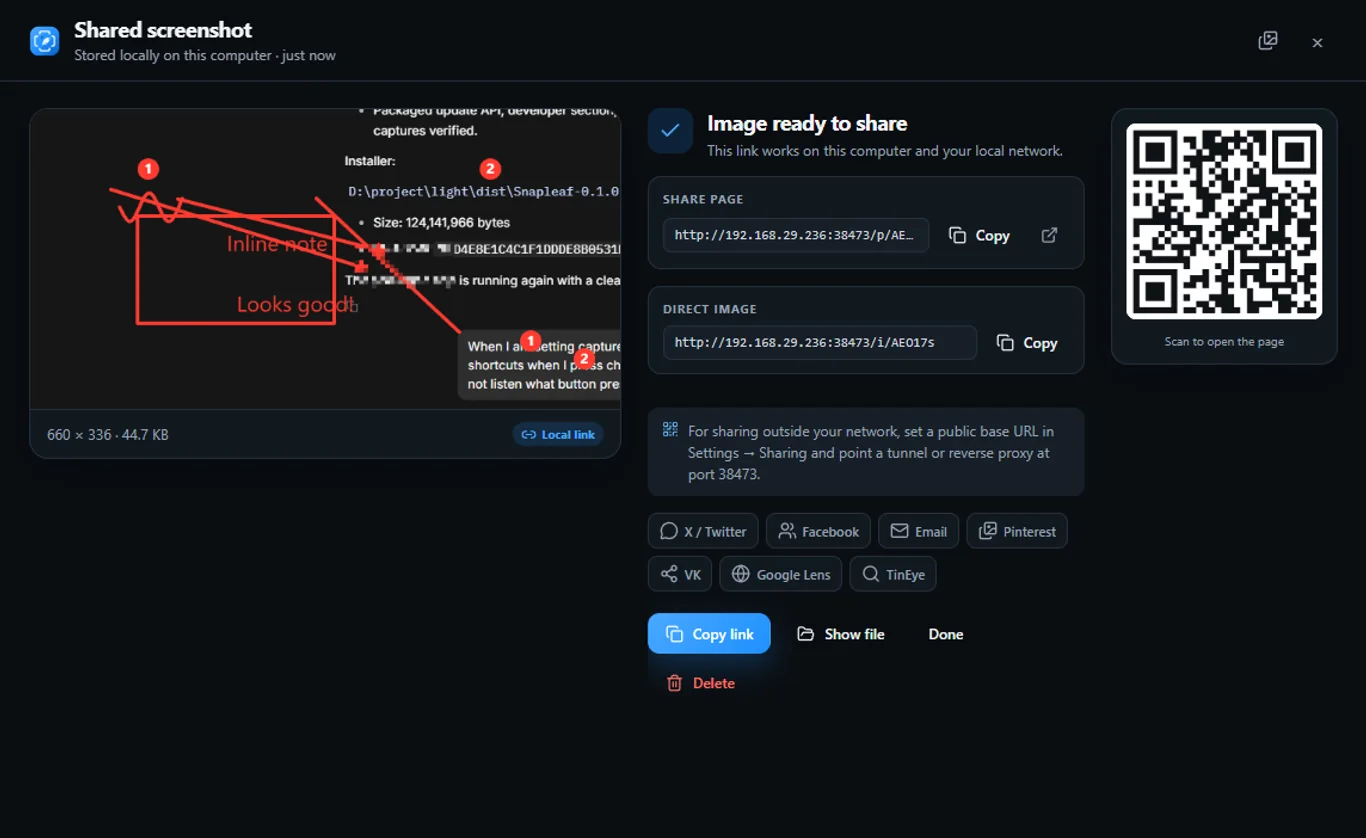
Snapleaf shared screenshot window showing the share page URL, direct image URL, QR code, and social share buttons.
One share window with page link, direct image link, QR code, and one-click share targets.

Built-in sharing server

A local image server in your system tray.

When you press Share (Ctrl+U), Snapleaf stores the image in %APPDATA%\Snapleaf\uploads and serves it from a lightweight Node HTTP server on port 38473. No account signup, no rate limits, and no third-party terms of service.

  • Share page (/p/:id) with Open Graph metadata & download button
  • Direct image route (/i/:id) with immutable caching headers
  • High-contrast QR code for instant phone scanning on Wi-Fi
  • Auto-copy link to clipboard & optional 3-second auto-close
  • Public Base URL option for Cloudflare Tunnel, Tailscale, or Nginx
  • X/Twitter, Facebook, Email, Pinterest, VK, Google Lens & TinEye
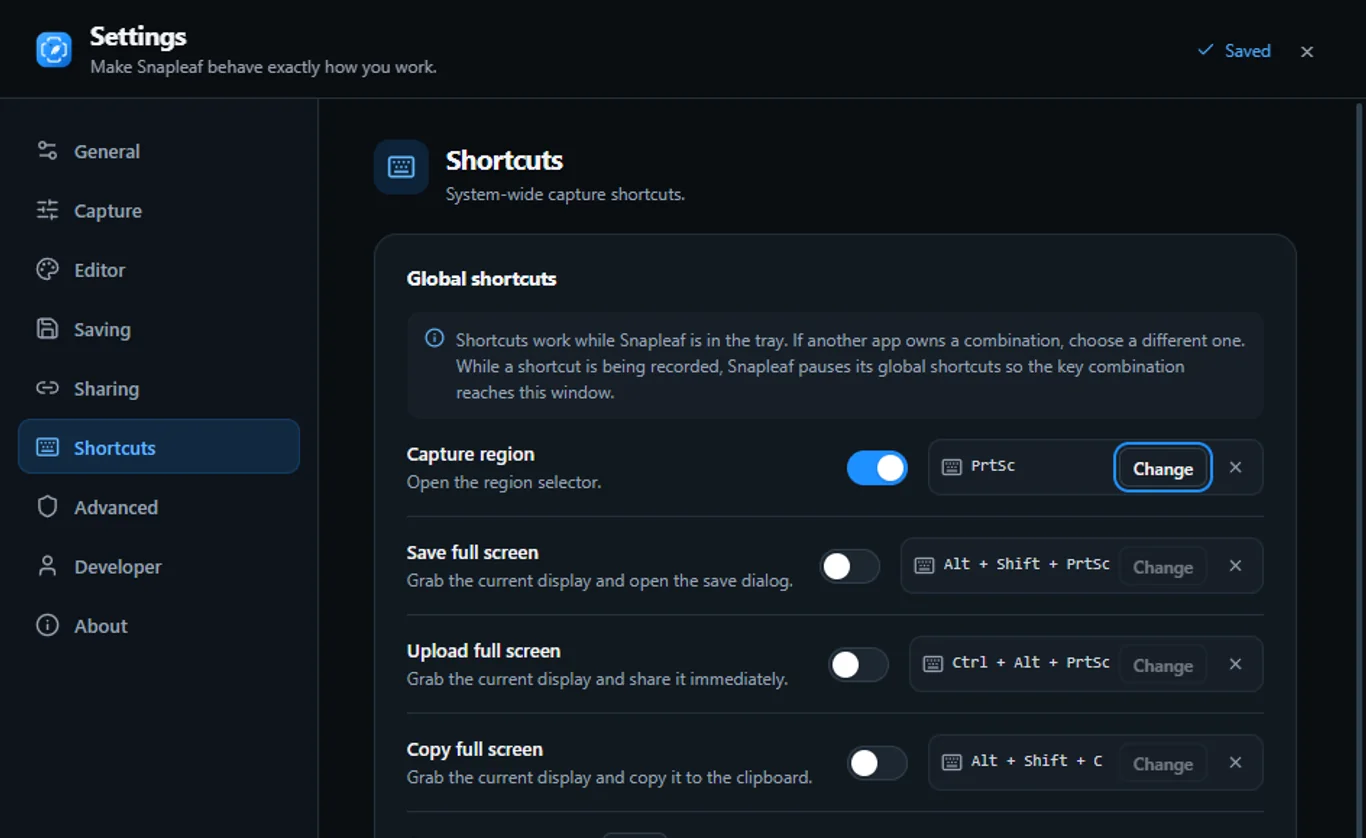
Snapleaf Shortcuts settings showing Capture region bound to PrtSc, quick full-screen hotkeys, and the Windows Print Screen takeover toggle.
While recording a new shortcut, Snapleaf pauses its global listeners so pressing PrtSc records the key instead of opening a capture.

Global hotkeys & Print Screen

A shortcut recorder that actually listens.

Bind global shortcuts for Capture region (default PrtSc), Save full screen (Alt+Shift+PrtSc), Upload full screen (Ctrl+Alt+PrtSc), and Copy full screen (Alt+Shift+C). If another application owns a combination, Snapleaf shows a human-readable registration warning right in Settings and on the Home dashboard.
  • Per-user Windows 11 Print Screen key takeover & restore
  • Live modifier preview (`Shift + …`) while recording
  • Launch with Windows & Start minimized in system tray
  • Single-click tray icon to open the dashboard
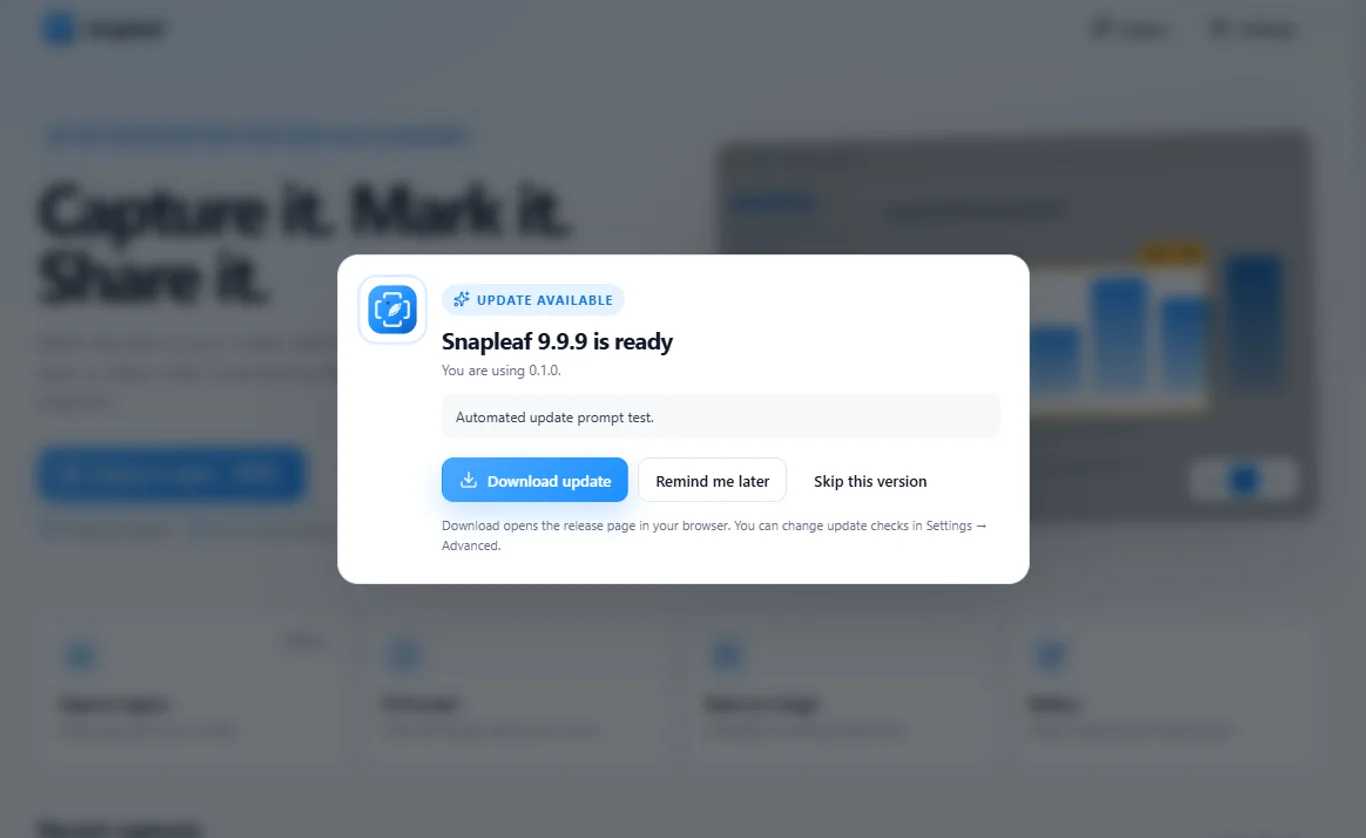
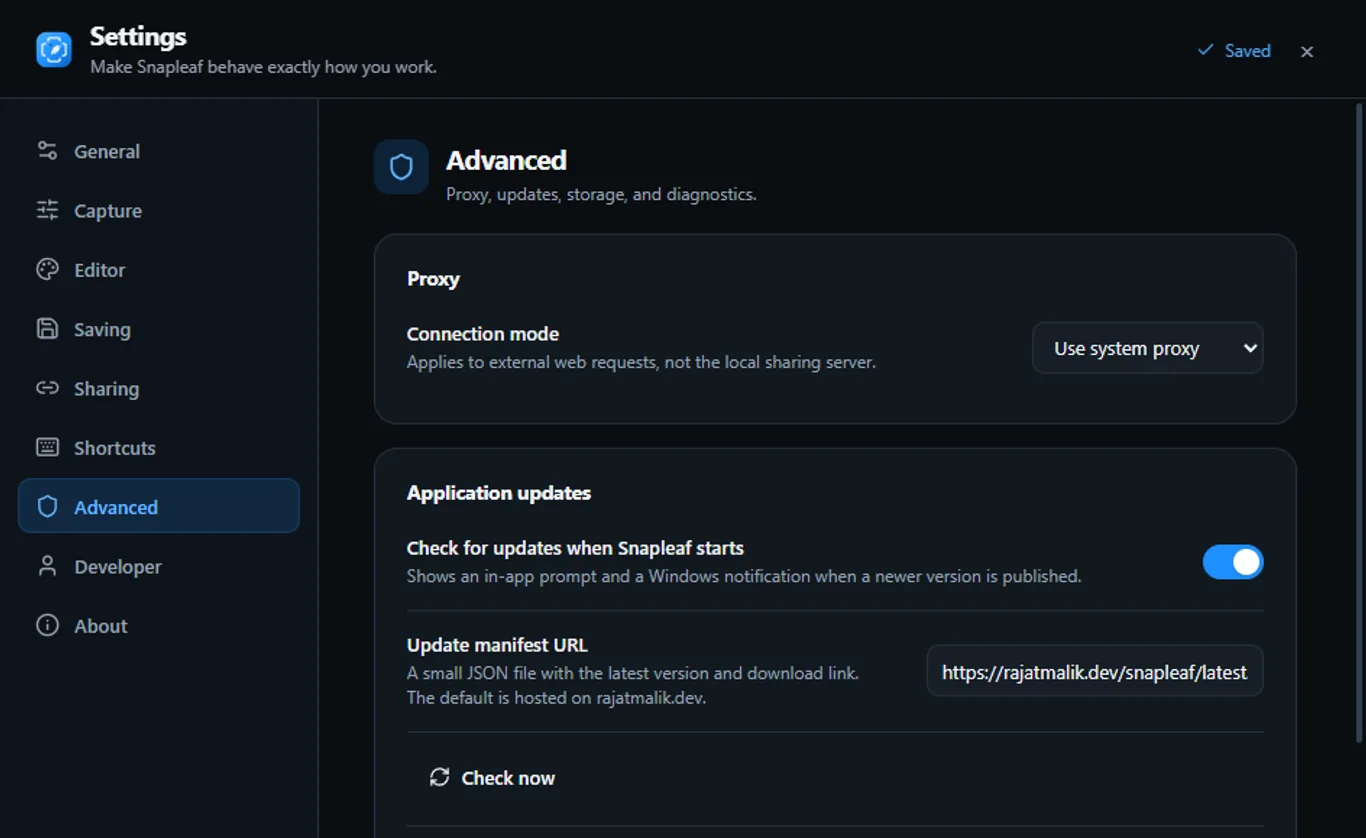
Snapleaf update available dialog offering Download update, Remind me later, and Skip this version. Snapleaf Advanced settings showing Proxy connection modes and the Application updates manifest URL.
Update checks respect your proxy setting and never install anything silently.

Updates, proxy & diagnostics

Transparent updates and enterprise-friendly proxy controls.

On launch, Snapleaf checks a lightweight JSON manifest (or GitHub Releases API response) through Chromium’s network stack, honoring your system, direct, or manual HTTP(S) proxy. When a new version is published, you get an in-app prompt and a native Windows notification with three honest choices.

  • Download update (opens release page in browser)
  • Remind me later (24-hour snooze) or Skip this version
  • System, direct, or manual HTTP(S) proxy modes
  • One-click access to data, captures, uploads, and log folders
  • Context-isolated Electron renderer with locked-down permissions
  • Loopback-restricted delete API on the local sharing server

Everything included

The complete Snapleaf specification.

Every feature below ships in the free v0.1.0 Windows installer. No paywalls, no watermarks, no account required.

Capture

  • Rectangle, circle/ellipse & freehand lasso
  • Attached shape switcher bar after drawing
  • Transparent corners on ellipse/lasso PNGs
  • Full-screen display capture & disk import
  • Per-display DPI scaling & remembered region
  • Live pixel magnifier with coordinates & hex
  • Optional cursor inclusion & dim opacity

Inline Overlay

  • 20px icon-only square tool rail
  • Compact bottom action bar
  • Smart left/right/top edge flipping
  • Corner resize handles
  • Color & stroke/text size popovers
  • Inline Edit, Copy, Save, Share, Print
  • Handoff to full editor at native DPI

Annotation & Studio

  • Pen, Line, Arrow, Box, Circle, Marker
  • Inline Text with 5 font families
  • Auto-numbered Step badges (1, 2, 3…)
  • Pixelate mosaic redaction patch
  • Per-object Eraser with single-item undo
  • Rectangular Crop & 5%–400% Zoom
  • 40-step Undo/Redo & Clear all markup

Sharing & Gallery

  • Built-in local HTTP server (port 38473)
  • Short share page (`/p/:id`) with OG tags
  • Direct image URL (`/i/:id`) & QR code
  • Optional Public Base URL for tunnels
  • 7 social, email, Google Lens & TinEye targets
  • Searchable Captures & Shared gallery
  • Instant link revocation on local delete

Saving & Shortcuts

  • Native PNG clipboard copy
  • PNG optimization & JPEG quality (30–100)
  • Custom save folder & filename tokens
  • System print dialog from inline or editor
  • Windows 11 Print Screen key takeover
  • Live shortcut recorder & conflict alerts
  • 4 global capture & quick-action hotkeys

App & Platform

  • System, Light, and Dark themes
  • System tray menu & launch at login
  • Native Windows notifications
  • On-launch update check (Remind / Skip)
  • System, direct, or manual proxy support
  • Zero telemetry & MIT open-source license
  • Predictable `%APPDATA%\Snapleaf` storage

Ready in under a minute

Install it once. Use it every day.

Download Snapleaf for Windows 10 & 11, press PrtSc, and experience how fast local-first screenshot annotation feels.

v0.1.0 · ~124 MB · MIT License · No account required