Two workflows, zero friction
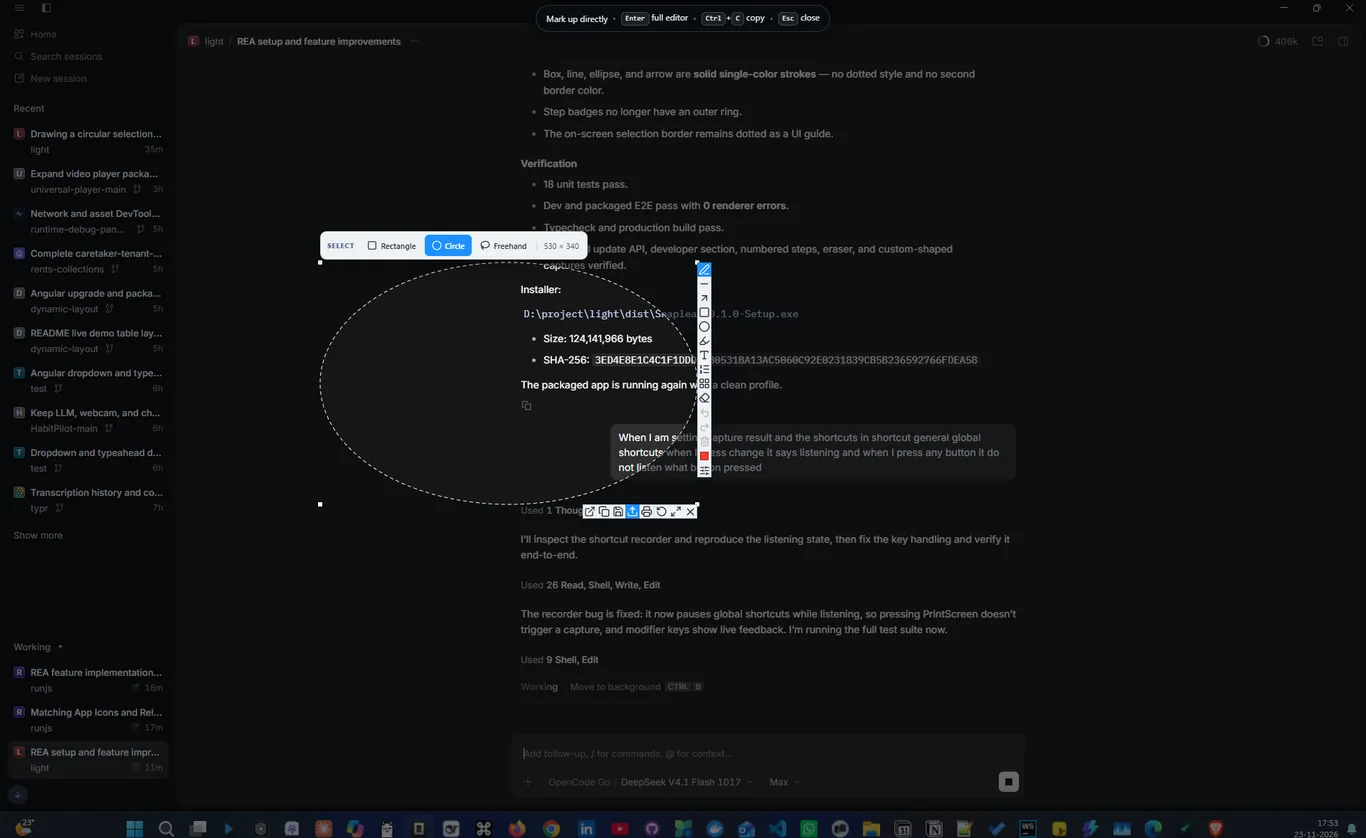
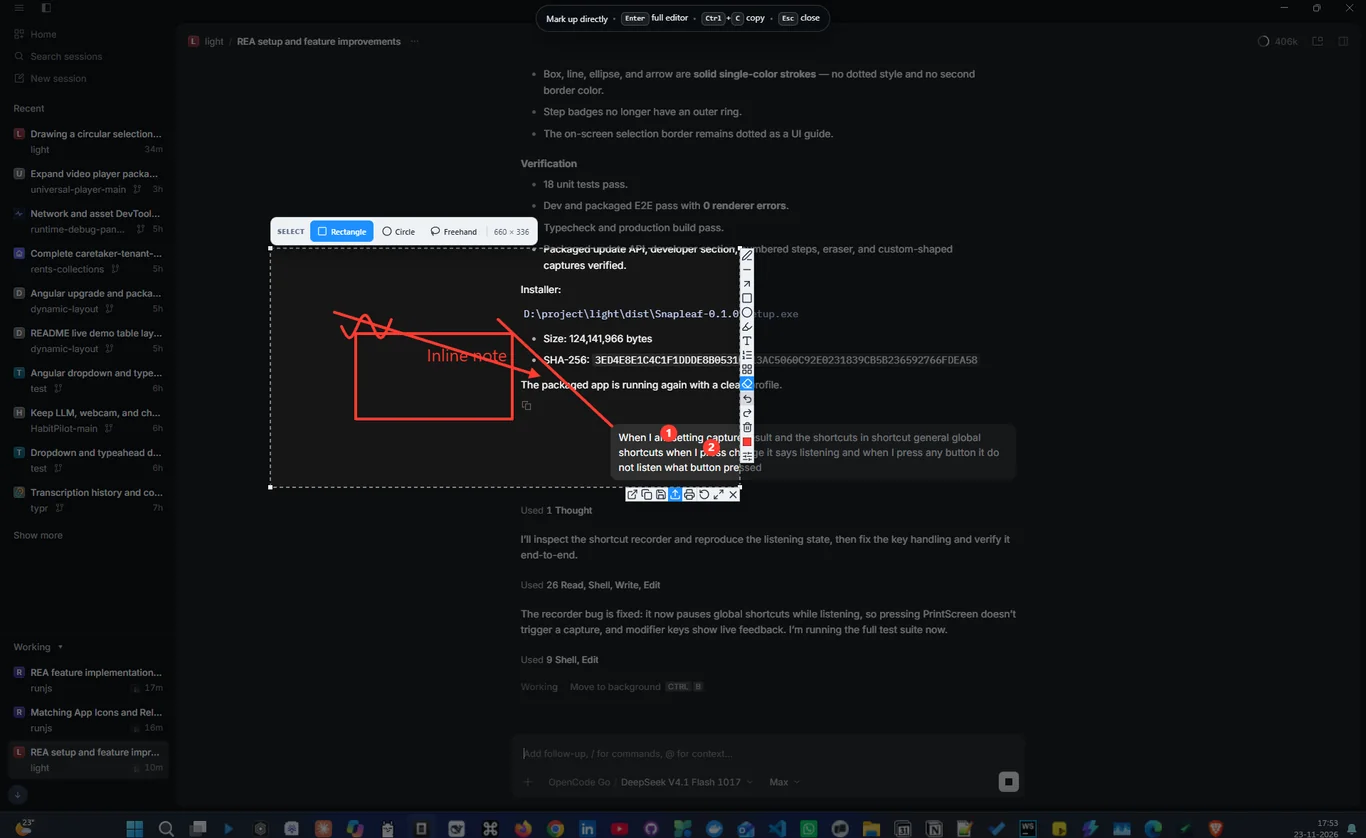
Mark up right on the frozen screen with the 20px icon-only rail, or press Enter to send your crop and inline markup into the full studio editor for crop, zoom, and fine work.
New Snapleaf 0.1.0 ships dual inline & full editors, ellipse & lasso capture, numbered steps, per-object eraser, and local QR sharing. See what’s in v0.1.0
Snapleaf is a local-first screenshot studio for Windows 10 & 11. Press PrtSc, drag a rectangle, circle, or freehand lasso, annotate right on screen or in the full studio editor, and copy, save, or share a QR link in seconds.
Interactive live demo
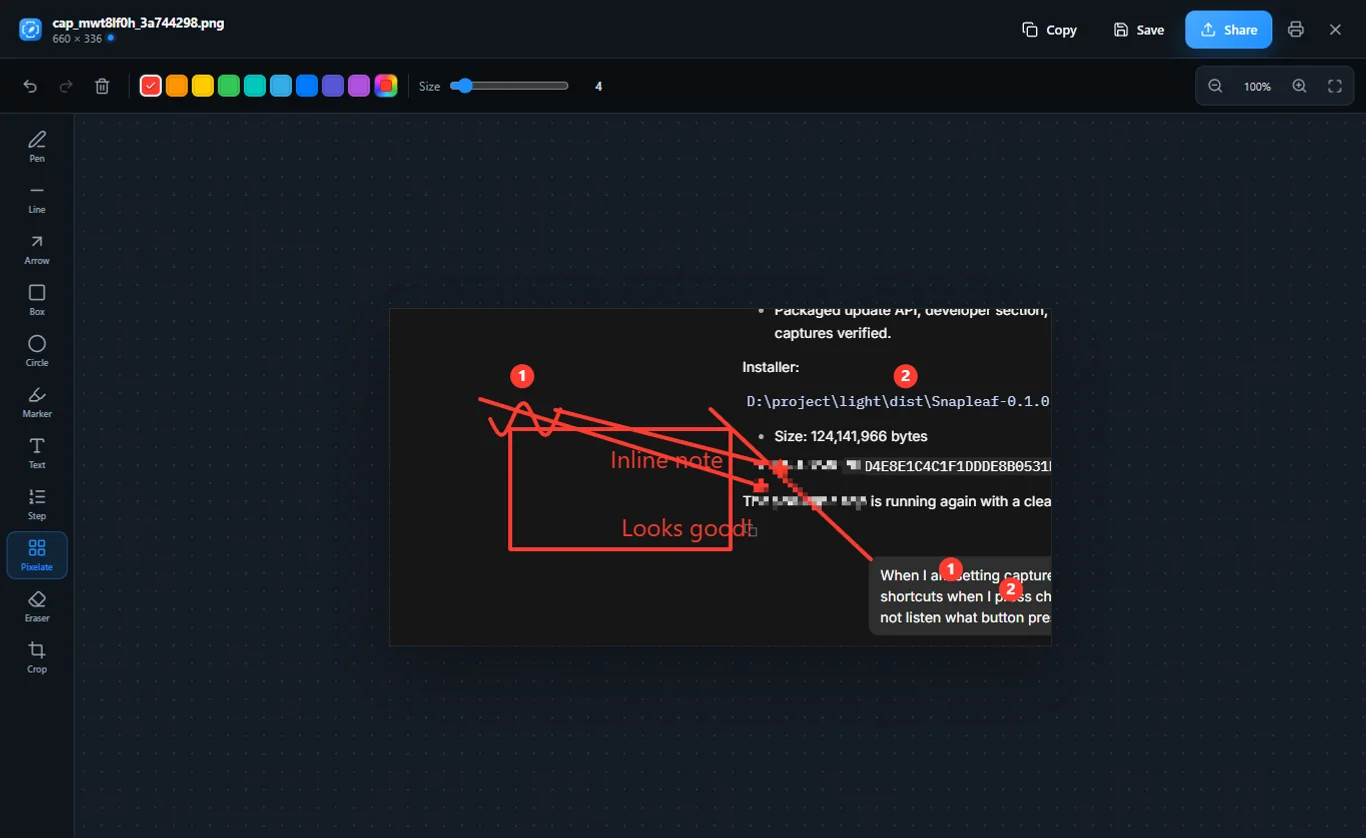
Pick a selection shape, choose a tool or color swatch, and click or drag directly on the canvas below. Drop numbered steps, draw arrows and boxes, redact text with Pixelate, or switch to the Per-Object Eraser and click any single markup to remove just that item.
Why switch to Snapleaf?
People loved classic screenshot tools because pressing PrtSc let you drag a box and draw an arrow immediately. They hated the blurry editors, missing redo/step tools, forced public cloud uploads, and embedded telemetry. Snapleaf fixes every one of those.
Mark up right on the frozen screen with the 20px icon-only rail, or press Enter to send your crop and inline markup into the full studio editor for crop, zoom, and fine work.
Switch selection shapes before or after dragging. Circle and freehand lasso captures preserve true alpha transparency outside the shape instead of filling corners with white.
No account, no telemetry, and no surprise uploads to a public server. Share on your LAN with an instant QR code, or point your own tunnel at port 38473 when you want a public link.
Built for clarity
From the pixel magnifier during selection to the per-object eraser that removes a single stroke without ruining your work, Snapleaf is built for developers, QA engineers, product managers, and technical writers.
Select any region and a 20px-thin, icon-only square tool rail attaches flush to the selection edge alongside a compact bottom action bar for Edit, Copy, Save, Share, Print, Redraw, Full screen, and Close. Drag near the bottom-right corner of your monitor and both bars automatically flip inward so every button stays reachable.
// Press PrtSc anywhere on Windows 10 or 11
Shape     → R Rectangle   O Circle/Ellipse   L Freehand Lasso
Annotate  → P Pen  L Line  A Arrow  R Box  O Circle  M Marker  T Text  S Step  B Pixelate  E Eraser
Finish    → Ctrl+C Copy   Ctrl+S Save   Ctrl+U Share QR   Enter Full Studio Editor
→ Exported at native physical display DPI with solid single-color strokesClick with the Step (S) tool to drop crisp 1, 2, 3 callout badges for bug reports and tutorials. Made a mistake? The Eraser (E) hit-tests geometry and removes only the stroke, shape, text, or step you click—and Ctrl+Z restores that single removal.
Switch the attached Select bar between Rectangle, Circle, and Freehand even after drawing. Ellipse and lasso captures clip the bitmap and leave real transparent pixels (`alpha = 0`) outside your shape.
Select Pixelate (B) and drag over API keys, emails, customer names, or private URLs. Snapleaf generates a sharp block-mosaic patch at native resolution that permanently replaces the underlying pixels on export.
Windows 11 hijacks PrtSc for Snipping Tool. Snapleaf’s shortcut manager toggles the per-user registry flag cleanly, pauses hotkeys while recording new combinations, and restores Windows defaults if turned off.
Press Share and Snapleaf’s built-in HTTP server generates a share page (/p/:id) with Open Graph tags, a direct image link (/i/:id), and a scannable QR code for your phone—plus social, Google Lens, and TinEye intents.
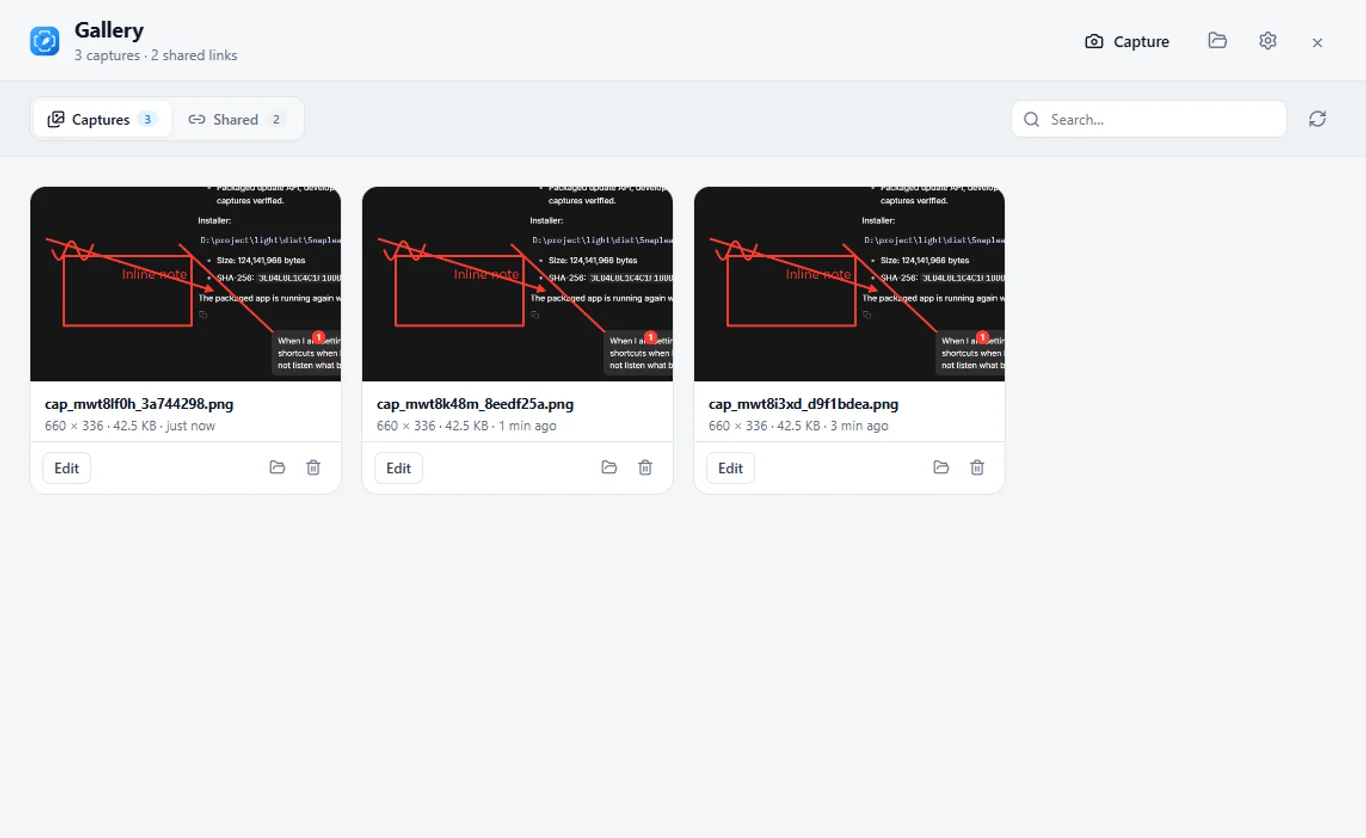
Every capture and shared image is indexed in a live searchable Gallery with separate Captures and Shared tabs. Reopen any screenshot in the full editor to crop, zoom up to 400%, add more callouts, reveal the file in Explorer, or delete a shared image so its link stops working immediately.
Three ways to finish
You never have to choose between a lightweight screen overlay and a proper annotation editor. Snapleaf carries your inline markup straight into the full editor whenever you press Enter.
Select an area and keep the frozen desktop open. Switch between Rectangle, Circle, and Freehand above the selection, draw with the 20px vertical rail, and copy, save, share, or print right where you dragged.
1// 1. Freeze display & pick selection shape
2Select: 'Rectangle (R)' | 'Circle (O)' | 'Freehand (L)'
3
4// 2. Mark up directly with the 20px flush tool rail
5annotateInline({ tools: ['pen', 'arrow', 'step', 'pixelate', 'eraser'] })
6
7// 3. Act immediately or hand off to the full editor
8Action: Ctrl+C (Clipboard) | Ctrl+S (Save) | Ctrl+U (Share) | Enter (Editor)Press Enter (or click Edit) and your captured region—including any inline annotations—opens in a dedicated window with a labeled tool rail, crop tool, zoom controls, and checkerboard transparency.
1// Carries inline markup into a roomy, zoomable canvas
2const studio = openFullEditor(annotatedCrop)
3
4studio.addNumberedSteps([1, 2, 3])
5studio.pixelateSensitiveArea({ x: 320, y: 118, width: 180, height: 34 })
6studio.crop({ width: 422, height: 215 })
7
8await studio.exportPng({ preserveAlpha: true })Private sharing, on your terms
Classic screenshot uploaders send every capture to a public vendor database where sequential URLs can be guessed by strangers. Snapleaf never uploads anything to a vendor cloud.
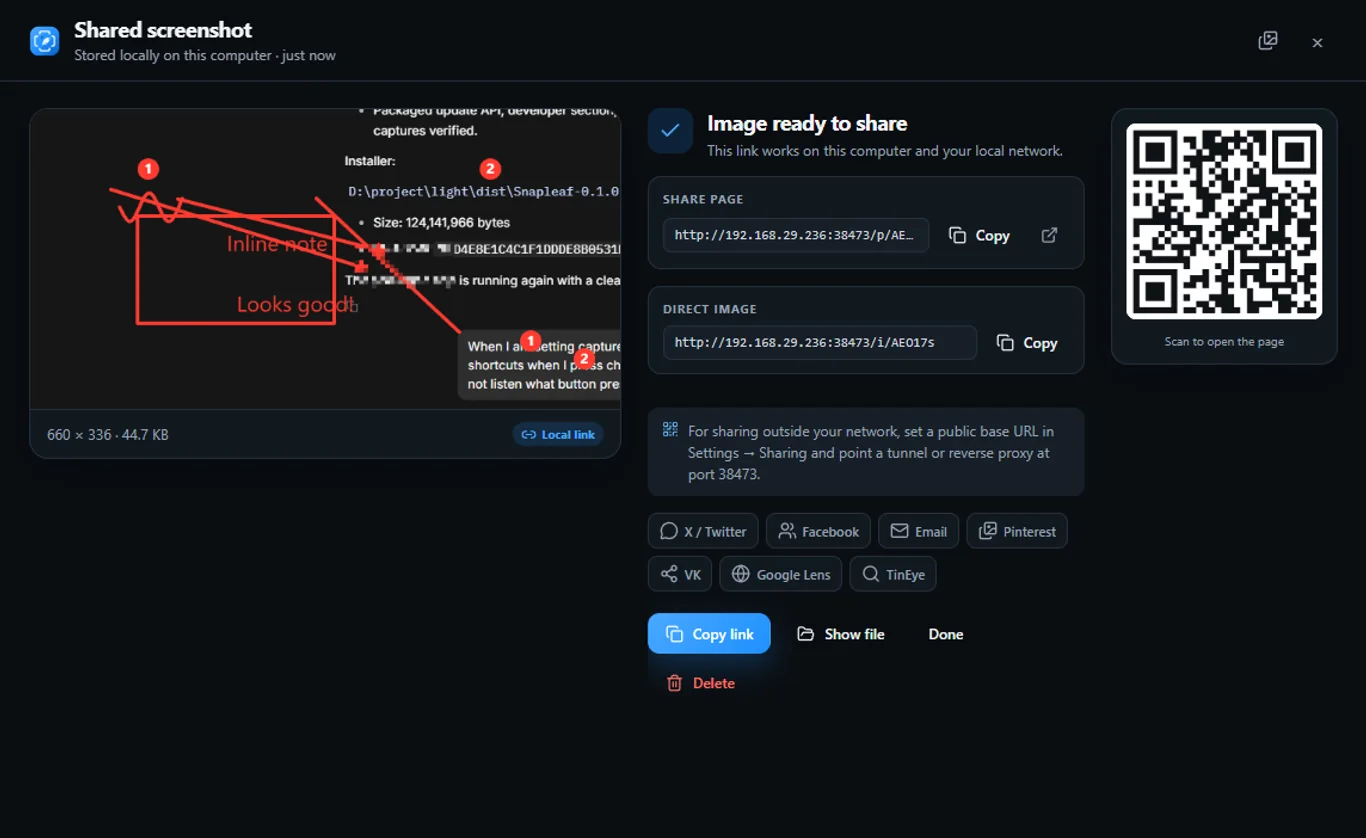
Interactive appearance & screen lab
Snapleaf follows your Windows 11 theme automatically or locks to Dark or Light mode. Pick a view below to switch the live studio preview and inspect real screenshots from both themes.
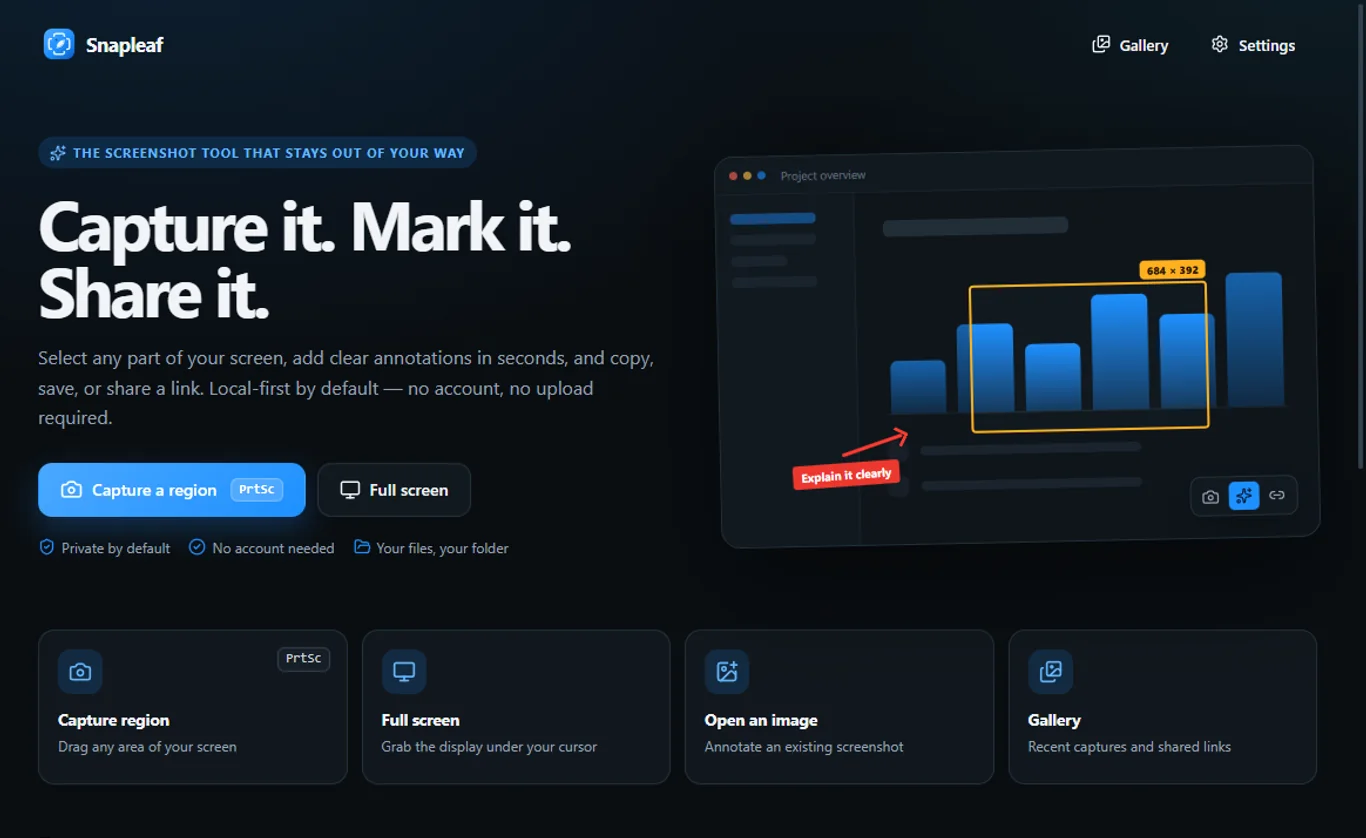
Real app screenshots
Every image on this site was captured automatically from the packaged Windows build during end-to-end verification.
Clean-room & open source
Snapleaf is an original MIT-licensed implementation. Unlike legacy freeware screenshot tools that embed analytics SDKs and push your captures to public third-party servers, Snapleaf keeps everything under %APPDATA%\Snapleaf on your machine.
Inspect the Electron + React + TypeScript codebase, run the automated Playwright E2E suite, or build your own installer.
Captures, uploads, library metadata, settings, and diagnostic logs live in plain files inside %APPDATA%\Snapleaf and Pictures\Snapleaf.
Checks a static JSON manifest on launch. Download update, remind me later (24h), or skip that version—never a silent background install.

Senior Lead Software Engineer at Siemens · Frontend Architect & Engineering Lead with 15+ years shipping high-performance products.
Before you download
More details live in the user guide and the 20-question FAQ.
Yes. Snapleaf is free and open source under the MIT License. There is no subscription, account wall, watermark, or locked tier. You can download the Windows installer or build from source.
No. Snapleaf is 100% local-first. Screenshots stay on your computer under %APPDATA%\Snapleaf and your chosen save folder. When you press Share, Snapleaf serves the image from a built-in local HTTP server on your LAN (port 38473) with a QR code—or through your own custom public tunnel if you configure one.
Snapleaf gives you both workflows at once: a fast 20px inline toolbar attached flush to your on-screen selection AND a roomy full editor when you press Enter. Unlike classic tools, it adds rectangle, ellipse, and freehand lasso capture with transparent pixels, auto-numbered step callouts, a per-object eraser with undo, pixelation redaction, and a searchable local gallery—with zero telemetry.
Yes. Windows 11 binds Print Screen to Snipping Tool by default. Snapleaf includes a per-user “Take over the Windows Print Screen key” setting that cleanly claims bare PrtSc for Snapleaf and restores the previous Windows setting whenever you turn it off.
Ready on your next Print Screen
Download Snapleaf for Windows 10 & 11, press PrtSc, and mark up your screen without accounts, cloud lock-in, or clutter.
v0.1.0 · ~124 MB · Windows 10/11 · MIT License · No account required